What it does
Grouped rather than listed exhaustively — the manual is the full reference. Everything on this page is in the current release.
Driving the surface
- Track colours on the scribble strips
- Straight from REAPER, in the DAW layer, with no SSL plug-in on the track. This is the feature the whole project started for.
- 16-bit motorised faders
- Full pitch-bend resolution with capacitive touch and a calibrated correction table, so the values match the printed scale.
- V-Pots with raw deltas
- No quantised MIDI CC in the path. Adjustable resolution, a virtual notch, and per-knob feel presets.
- LED feedback throughout
- Solo, mute, select, arm, transport and automation states, plus the three-state button LEDs and the colour bar.
The UF1
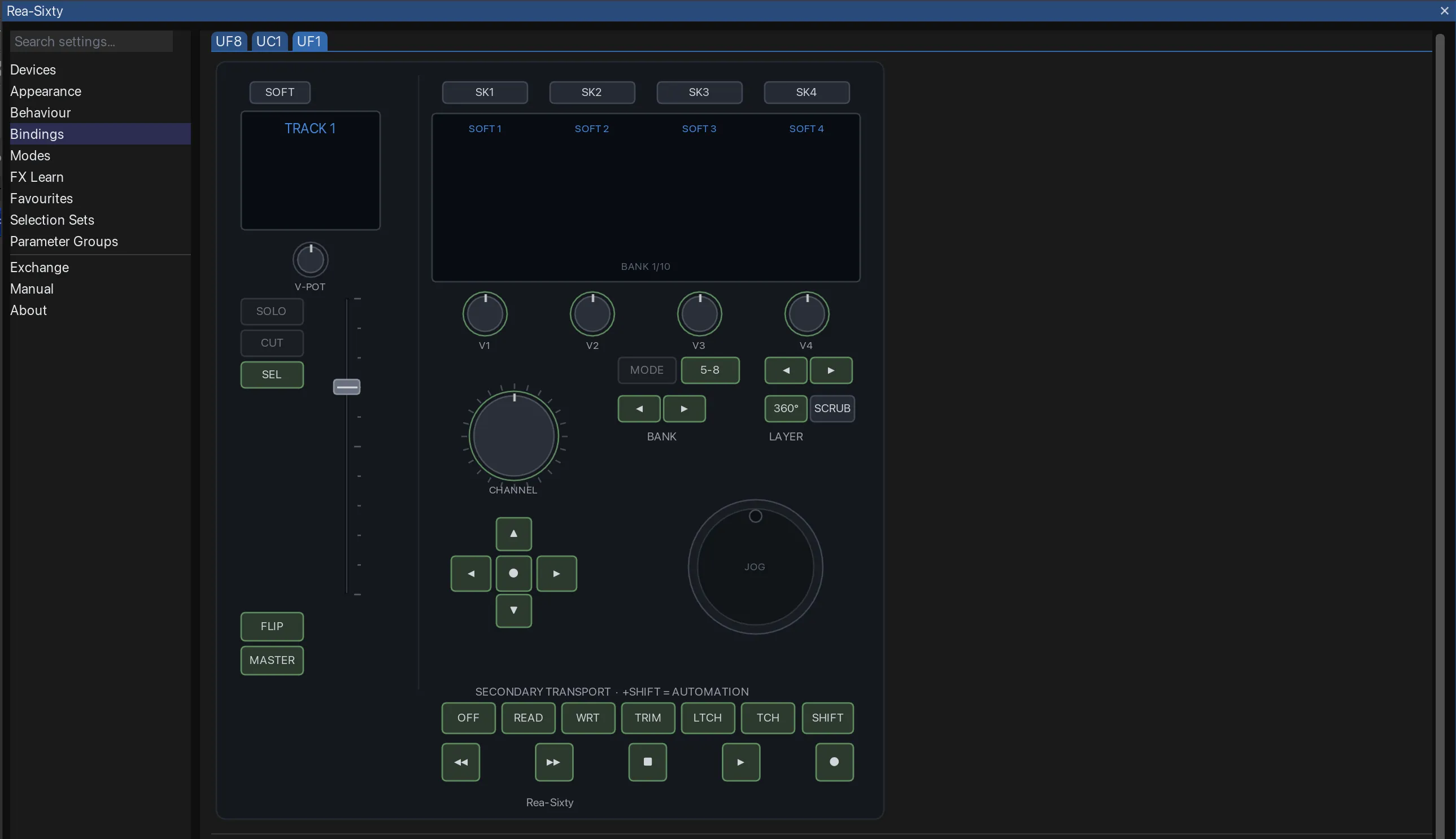
- Four views under one held key
- Hold MODE and the four display soft-keys become a view picker: Plugin, DAW, Meter and Sends. While it is held the CHANNEL encoder steps the Encoder Mode as well, so one key carries both pickers.
- The channel strip on the colour screen
- In Plugin view the four V-Pots carry the current page of the focused track's channel strip, and on an SSL strip, or one you have taught through FX Learn, the EQ curve is drawn on the screen.
- A metering instrument
- Overview bargraphs, an analogue screen with VU and PPM needles, and an RTA spectrum. A Meter Pro adds Loudness as a fourth screen. The figures are streamed by the SSL 360 plug-ins, so this view wants one of them on the track.
- The jog wheel has an object
- Playhead, audible Scrub, Items, Envelope or Razor, picked by holding SCRUB and turning. The arrow cross selects and the wheel moves, so you never let go of the wheel to change what you are working on. Shift is fine, Cmd copies, Ctrl is the cross axis.
- Razor edits without leaving the wheel
- Aim at the whole razor area or at any one of its four edges. Hold the centre key and the area drags its content as one continuous move, grabbing that content once at the start so the razor cannot sweep up what it is dragging across.
- One map for both surfaces, until you want two
- Leave a plug-in map without a UF1 layer and the UF1 fills itself from the UC1 mapping. Add the layer only for the plug-ins where the two should differ.
- A ninth fader for the UF8
- Extender mode, off by default, puts the UF1 into the UF8 bank as one continuous nine-wide strip on either side. Only the fader joins; the screen, V-Pots and soft-keys stay the UF1.
Metering
- Gain reduction from the plug-in
- Read through GainReduction_dB — the PreSonus VST3 host extension REAPER already exposes. Works for ReaComp, FabFilter and anything else that implements it. No sidechain tap, no JSFX probe.
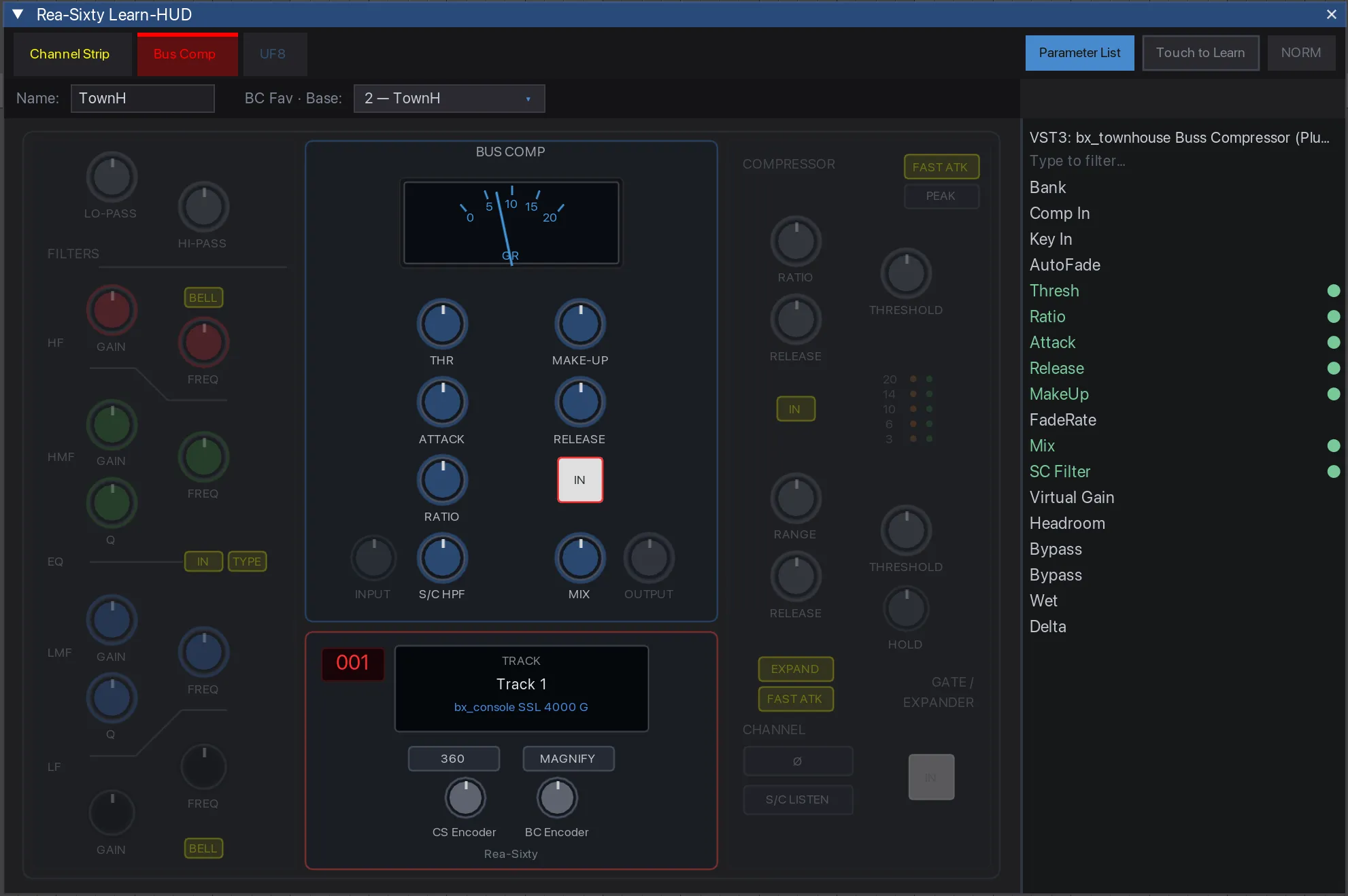
- The UC1 Bus Comp VU motor
- Driven with a per-breakpoint correction table so the needle lands where the scale says it should.
- Input metering, two ways
- By default pre-FX samples via AudioAccessor. Drop the bundled "Rea-Sixty Input Level" JSFX on a track and the meter instead shows what flows into that probe — live, even with the transport stopped.
Selection Modes
- Far more than NORM / REC / AUTO
- The SEL row is mode-hijacked. NORM selects; REC and REC+MON arm and monitor; AUTO cycles the track automation mode and can filter out everything not armed for writing.
- Nav Mode
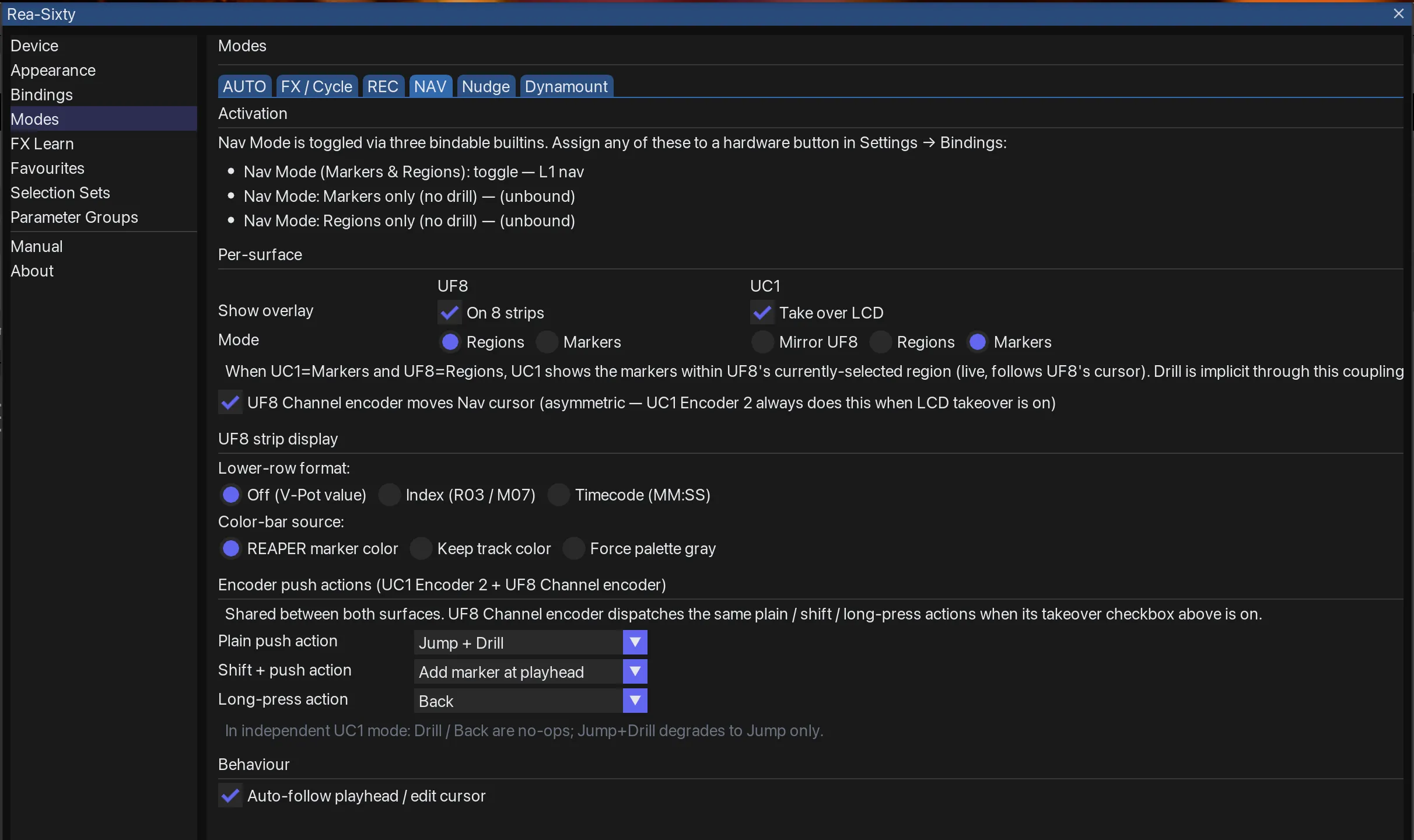
- The surface becomes a markers-and-regions navigator. Soft-keys jump, V-Pots scroll, the colour bar takes the marker colour. Sub-modes for markers only, regions only, or drilling into the region under the playhead.
- Folder Mode
- The bank shows folder parents; long-press SEL expands one into its children.
- Send and Receive views
- Pick a track and the eight strips become that track's sends — or its receives.
- FX Cycle and Instance Cycle
- FX Cycle walks every effect on the track. Instance Cycle walks only the surface-mapped ones. Both per-strip and focused-track scope.
Plug-in control
- FX Learn, without a wrapper plug-in
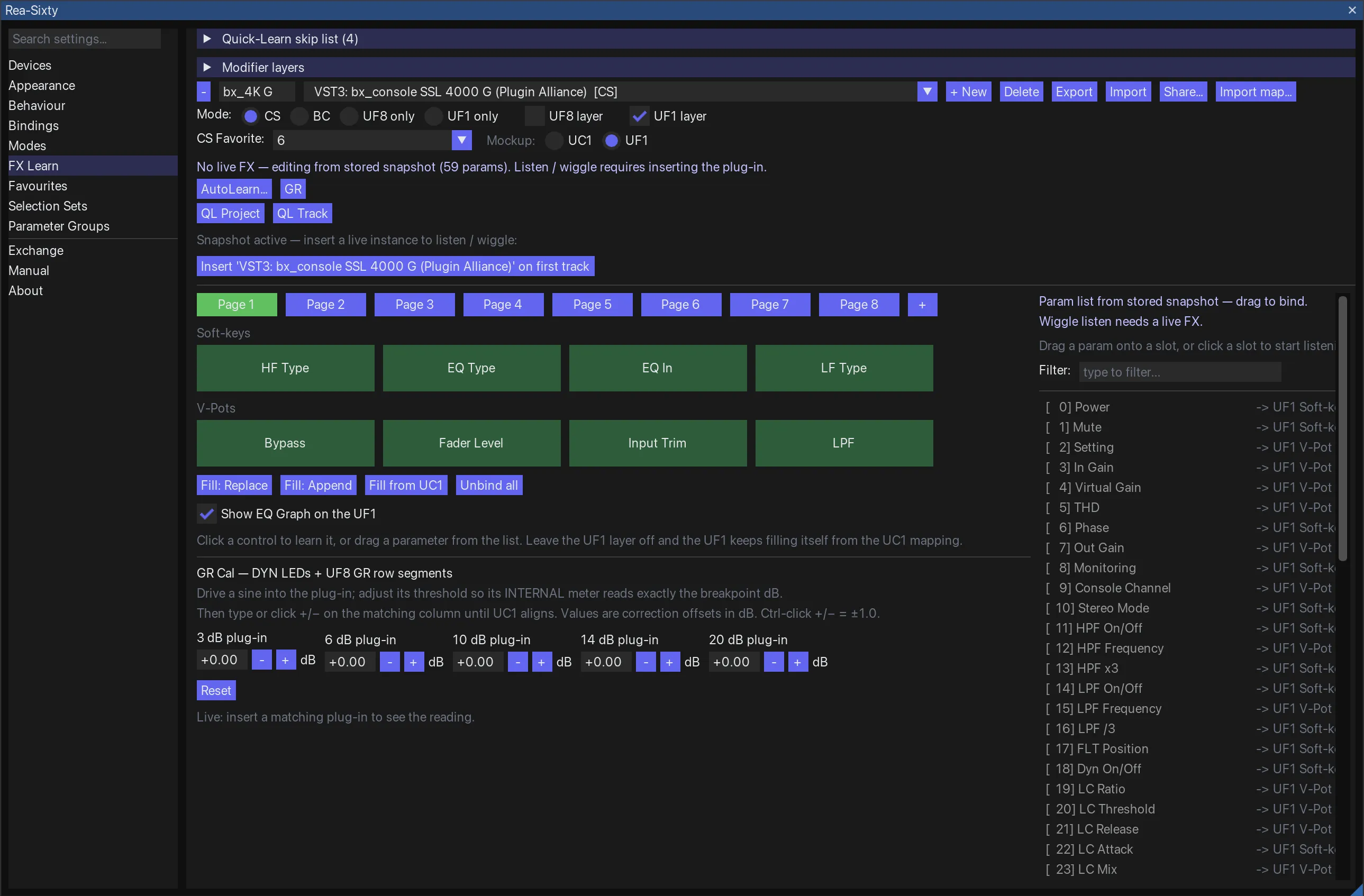
- SSL's approach puts a 360 Link plug-in in front of everything you want to control. FX Learn maps any VST, VST3, AU or JS parameter directly onto the UC1's controls or the UF8's eight strips.
- Mappings that survive your session
- Matched on a substring of the plug-in's identity name, so renaming an FX instance or reordering the chain does not break the binding.
- Per-parameter shaping
- Knob travel curves, sensitivity, inverted ranges, custom labels, push-to-cycle step lists and unipolar or bipolar V-Pot polarity — per control, per modifier layer.
- Channel Strip and Bus Comp favourites
- Store several plug-in configurations and switch between them from the surface. Values carry across differing plug-ins, unit-aware, so a switch preserves the sound instead of resetting it.
- Sticky Pot
- Pin a plug-in parameter to one pot and it stays under your hand while the surface moves on. A pin can take a second parameter on the same pot, counter-running, which is how an 1176 is driven harder without the level moving. Both values are anchored when you pair them, so nothing jumps.
Bindings
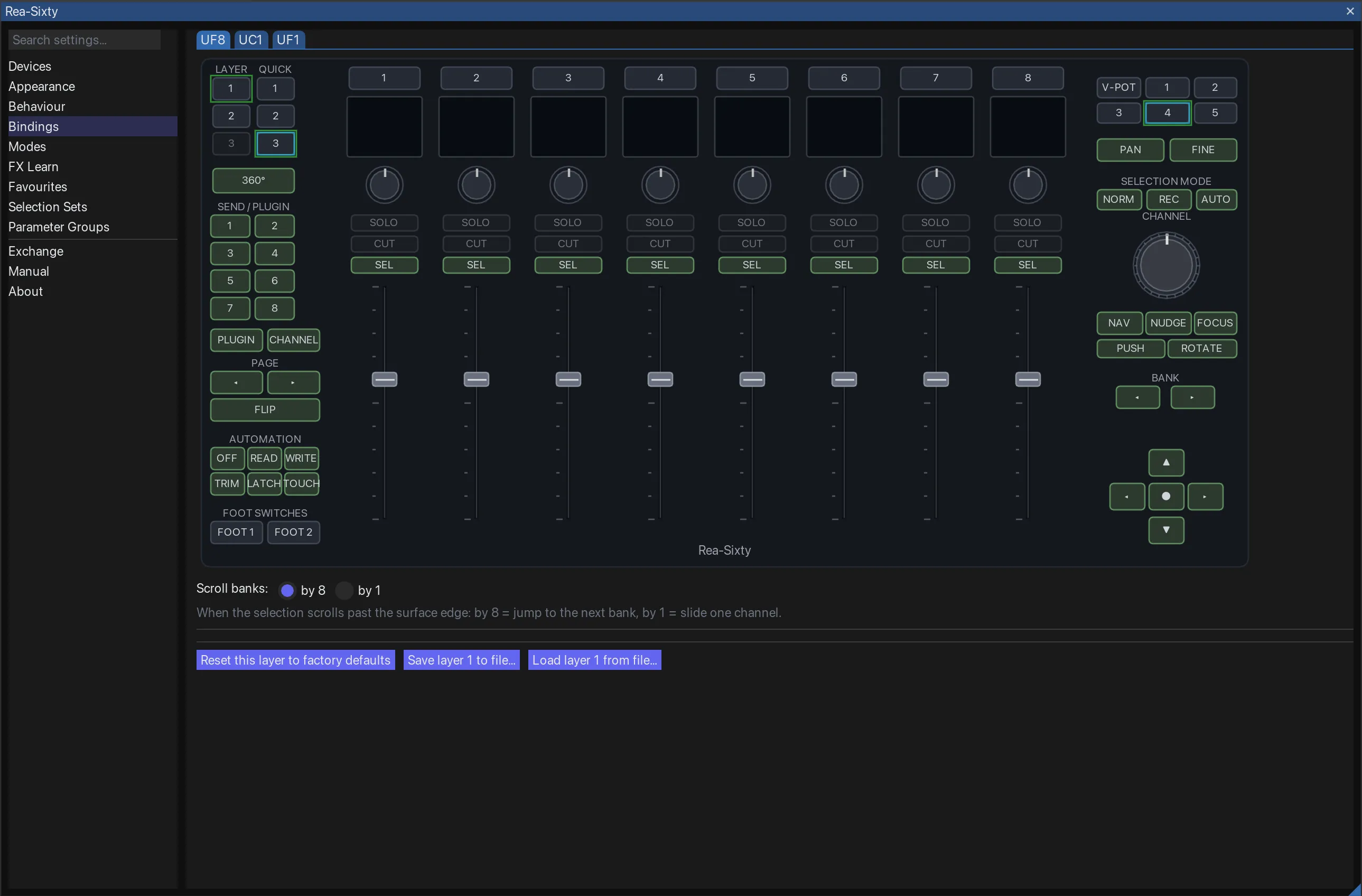
- Every button is rebindable
- Per-strip, transport, global and soft-key bindings, per layer, with modifier combinations and long-press as separate slots. A long-press slot can repeat while you hold the key, at an interval you set between 20 ms and 1000 ms, which is what a nudge, a zoom step or a marker step wants.
- Any REAPER action
- An action picker puts REAPER’s whole action list on the surface. Keyboard-macro actions fire arbitrary key-chords for anything without an action ID.
- Colour and brightness per binding
- Per modifier slot. Make the destructive bindings red and leave Bank L/R dim until you use them. It survives restarts.
- Nine soft-key sets, six banks each
- Every set carries a number as well as a name, so a set sits on any key you like, a foot switch or a Stream Deck tile, and the Quick key is only one of the ways in. One matrix holds all of them: click a cell to go to that bank, double-click to name it, right-click to copy, cut or paste the whole bank.
Sessions and organisation
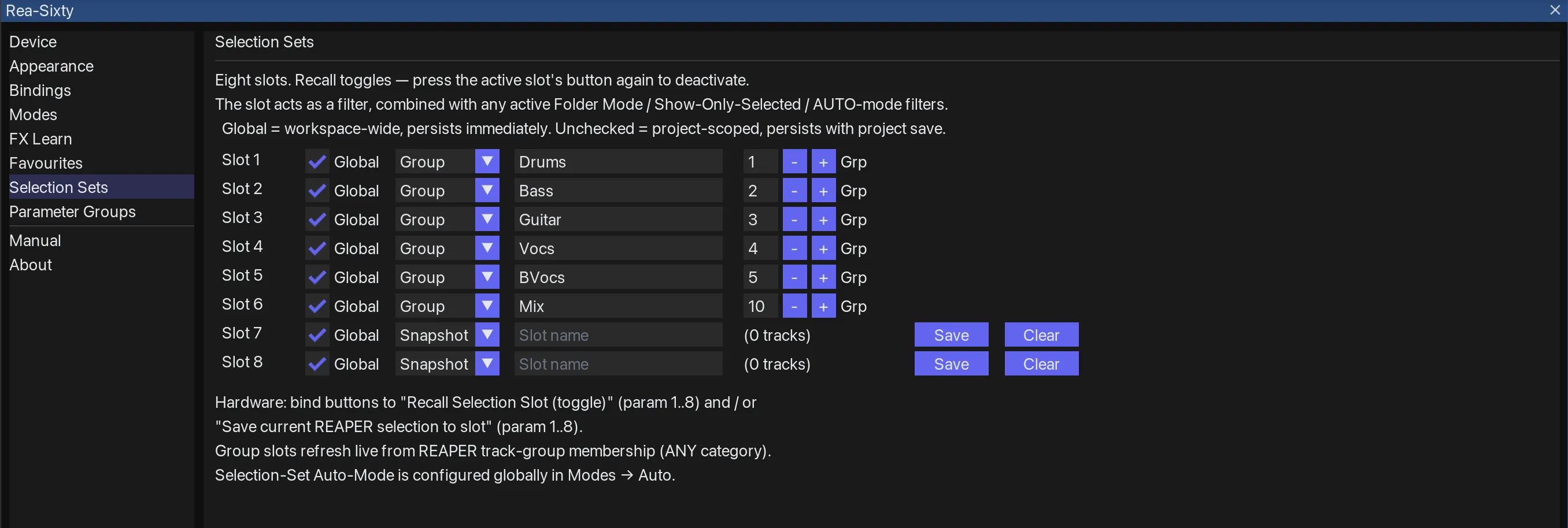
- Selection Sets
- Eight saved track selections per project, recalled with one button. They travel with the .RPP.
- Parameter Groups
- Twist a knob on one track and the same parameter moves on every member track.
- Setup export and import
- One bundled file covering bindings, learned plug-in maps, Parameter Group slot names and every Settings preference.
- The manual, in the app
- Baked into the build and readable under Settings → Manual, so it can never lag the version you have installed.
Integrations
- Stream Deck
- An official plug-in — double-clickable, no Node install — driving transport, selection-mode and action tiles plus a per-track metering tile with the track’s name and colour.
- OBS
- Recording, chapter marks and scenes from the keys, over obs-websocket. The lamp follows what OBS reports rather than what the key asked for, a soft-key bank carries the scene names live with the one on air lit, and a marker named “obs: Wide” switches scene as the playhead passes it.
- Bitfocus Companion
- The same bridge drives a native Companion module with actions, variables, feedbacks and presets. Community-supported rather than official.
- REC + RME via TotalReaper
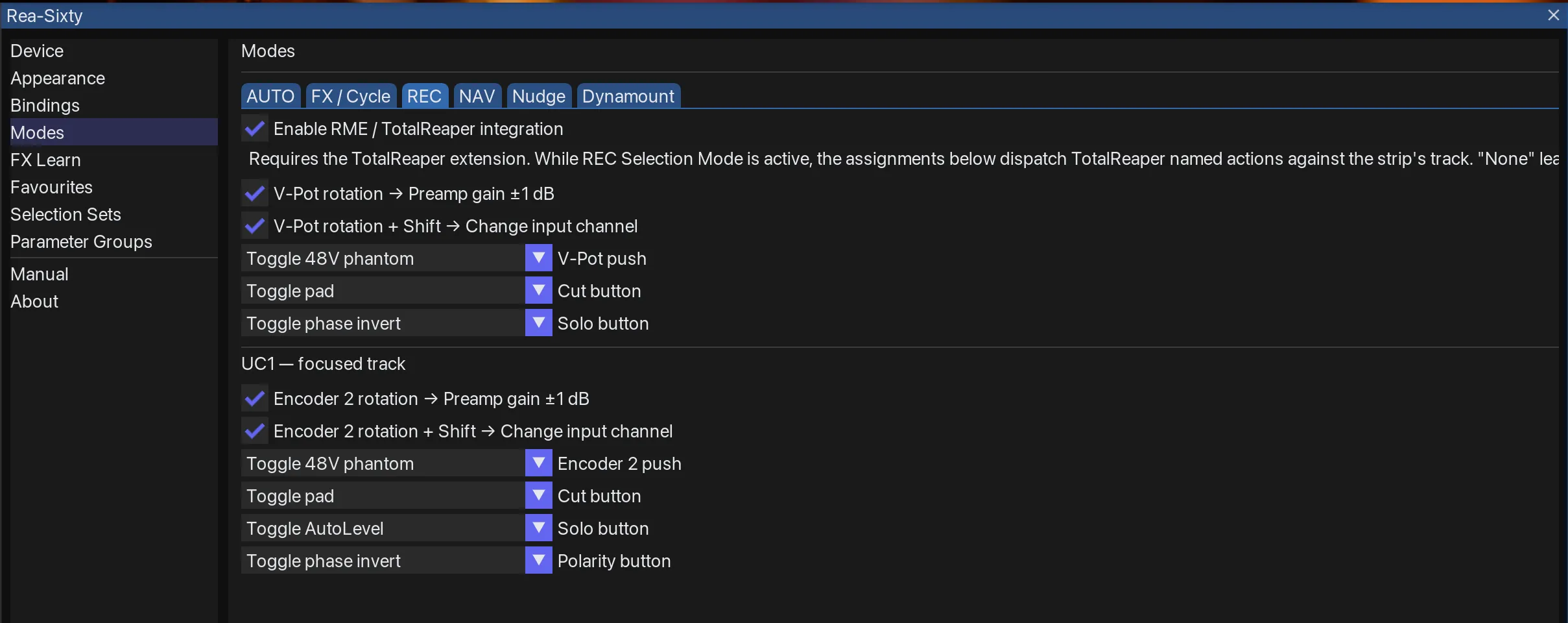
- Per-strip preamp mirror — gain, phantom power, pad and phase — when a TotalReaper instance is detected. Shift and the V-Pot step the track’s input channel with or without one, because that input is REAPER’s own. On a hardware input the value line stays with the preamp on all three surfaces, and on a channel without one it says so.
- DynaMount
- Drives DynaMount robotic microphone stands over the LAN from the surface.
On screen
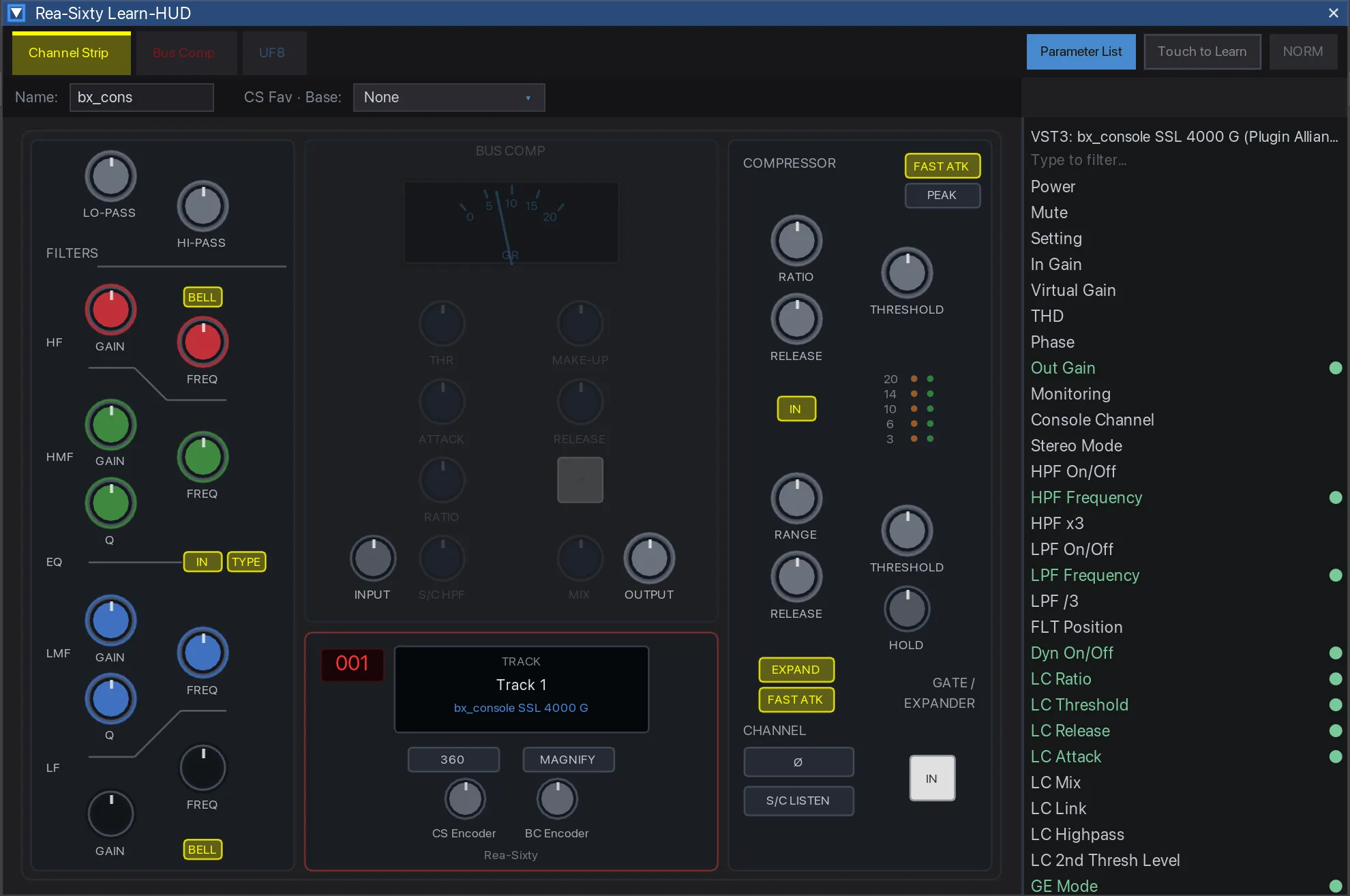
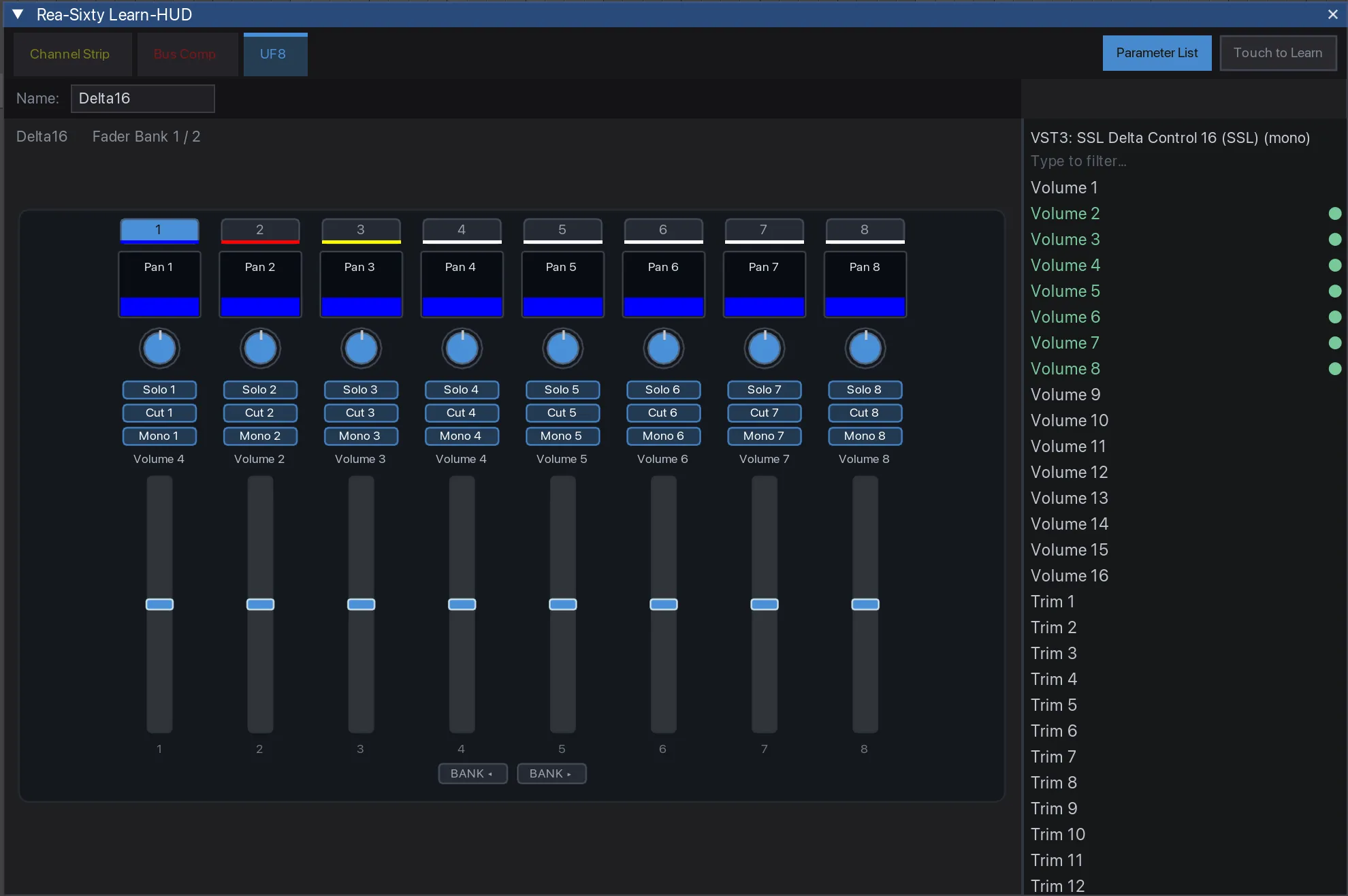
- The Learn-HUD
- A live mockup of the hardware showing what each control is currently mapped to. Right-click any control to shape it without leaving the view.
- A themed Settings window
- Ten panes, rendered through ReaImGui and coloured from REAPER’s active theme at runtime. Docked or floating — no second application.
- Overlays in REAPER
- Marker and region overlays, and inserts markers on the mixer, drawn over REAPER’s own UI.